Browse the screenshots to see how WinFindr’s search options and results fit together. You can search files, folders, registry keys and registry entries from one window.
WinFindr supports both Dark Mode and Light Mode User Interface. You can switch between them in the settings.
Protip: If you change this website from Light Mode to Dark Mode, or vice versa, you will see these WinFindr screenshots in the same mode.
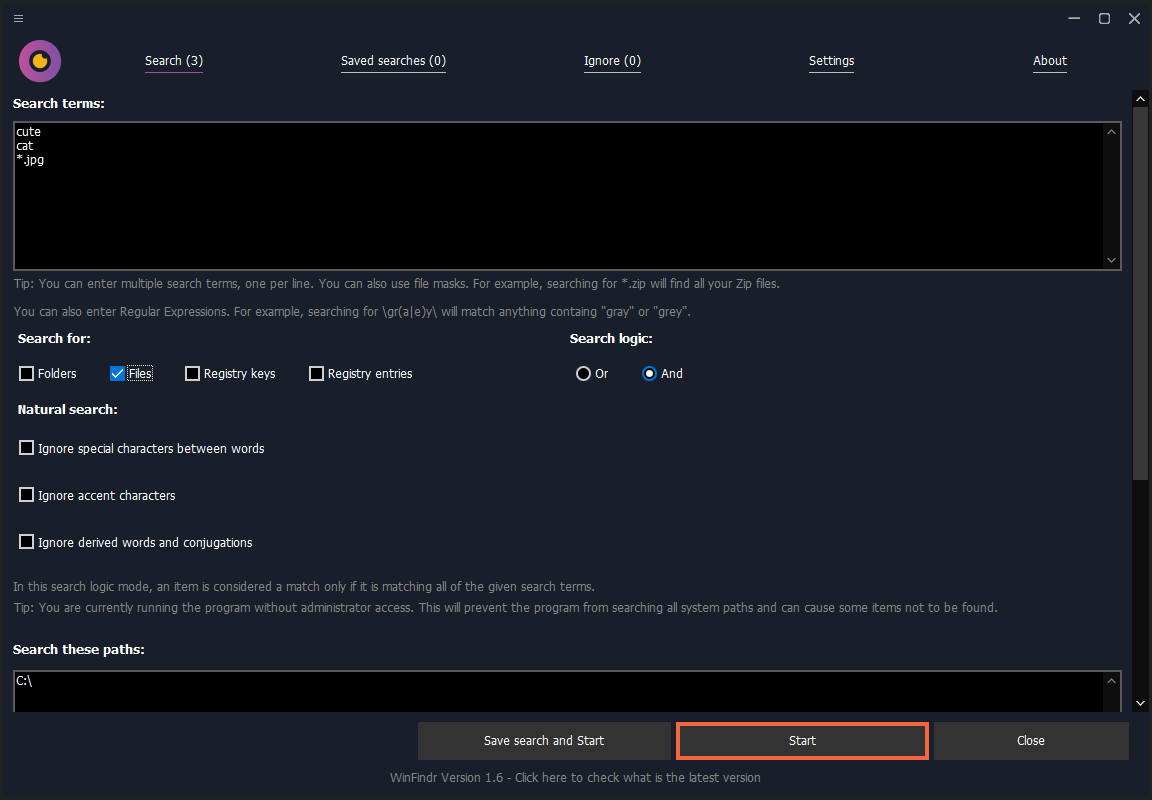
Main window and regular expressions
The main window shows the search options. Enter search words, wildcards or regular expressions, and choose which data to search.
For pattern examples and instructions, see the regular expression search tutorial.
You can click each screenshot to see a larger version.
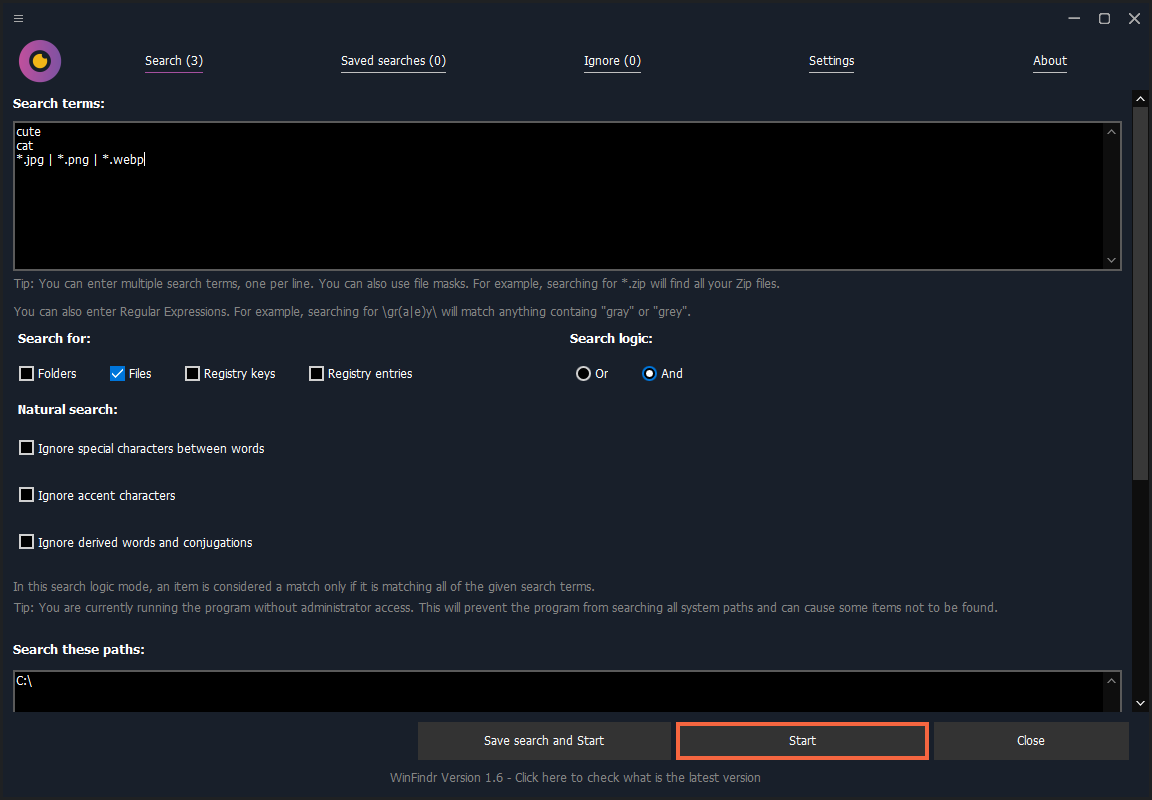
Search by file type
You can search for files based on their file extensions, but also based on their type such as to search for only image files.
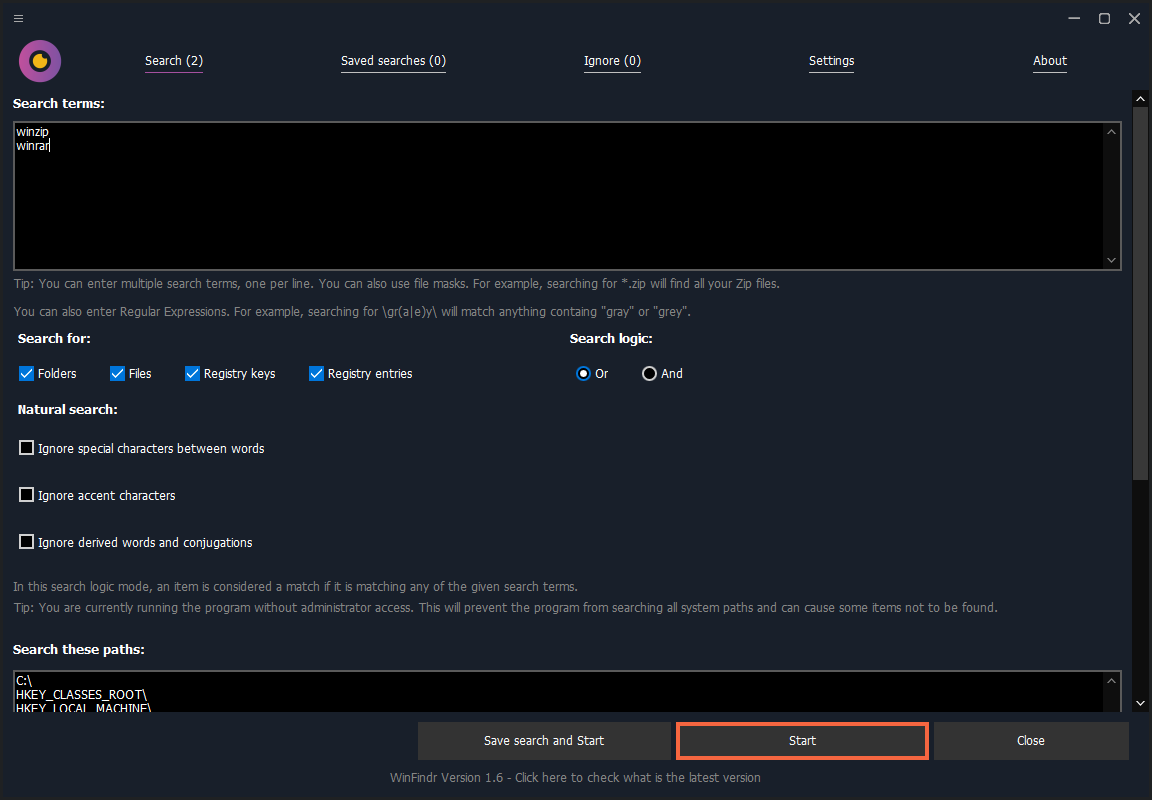
Search for many data types at once
WinFindr can search for files, folders, registry keys and registry entries, using many search words at the same time.

Search with natural language
WinFindr supports natural language processing. This allows you to find data even when you are not sure about the exact filename or the exact content of the file.
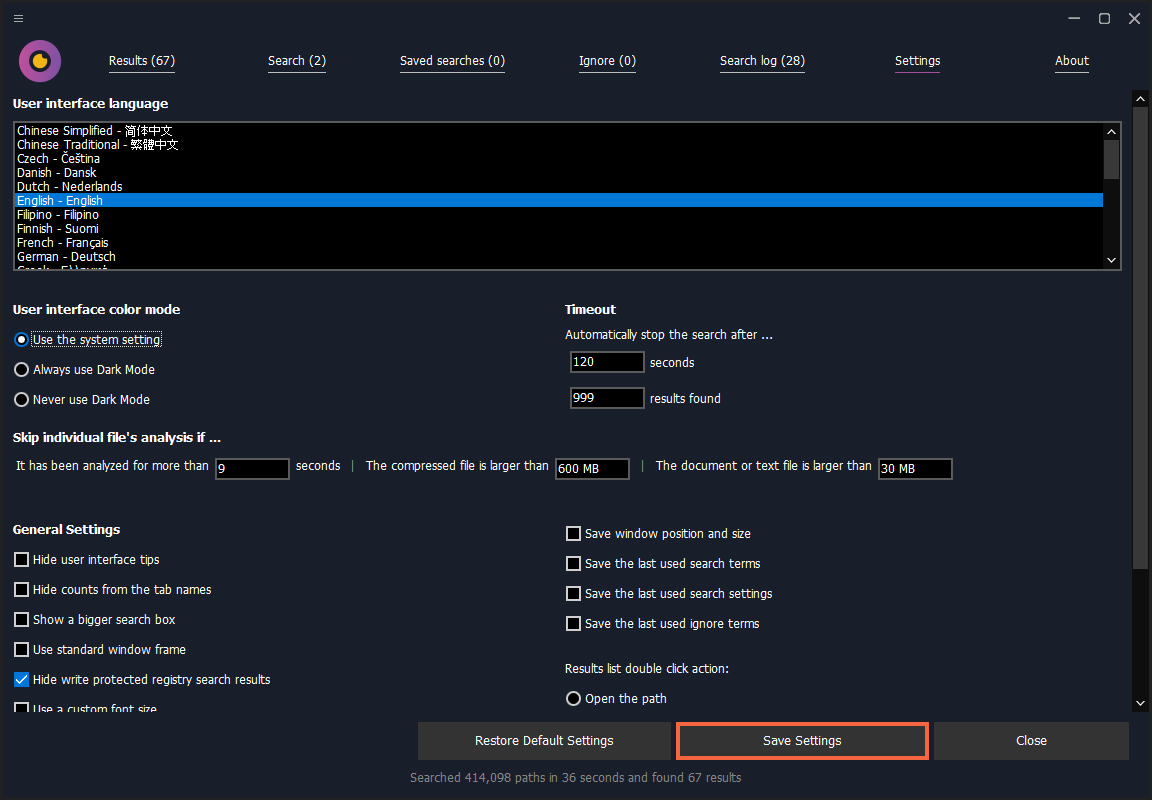
Settings
You can customize WinFindr to make it look and work exactly the way you want it to.
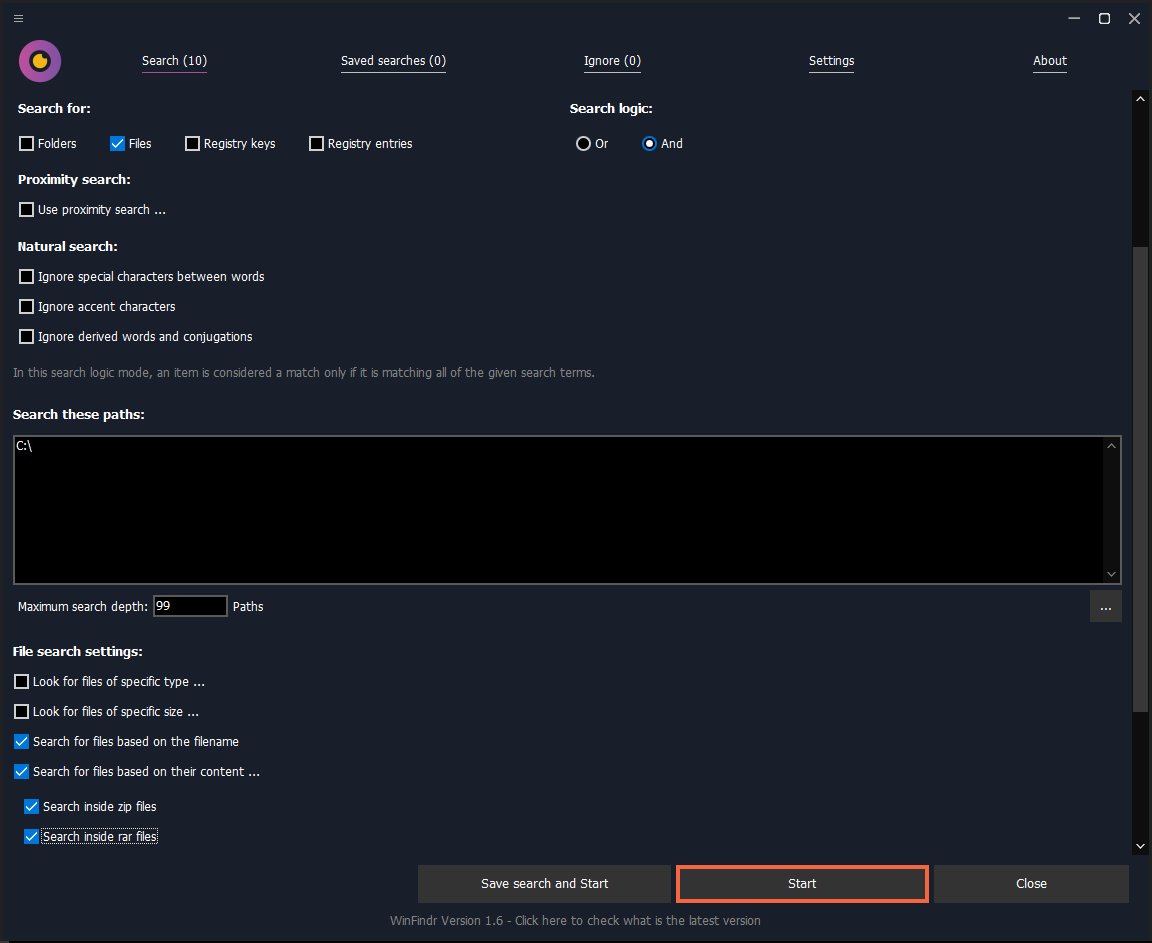
Search inside ZIP files
WinFindr can search for data inside ZIP and RAR files. This is a very useful feature if you have a lot of ZIP files and you want to find a specific file inside them.
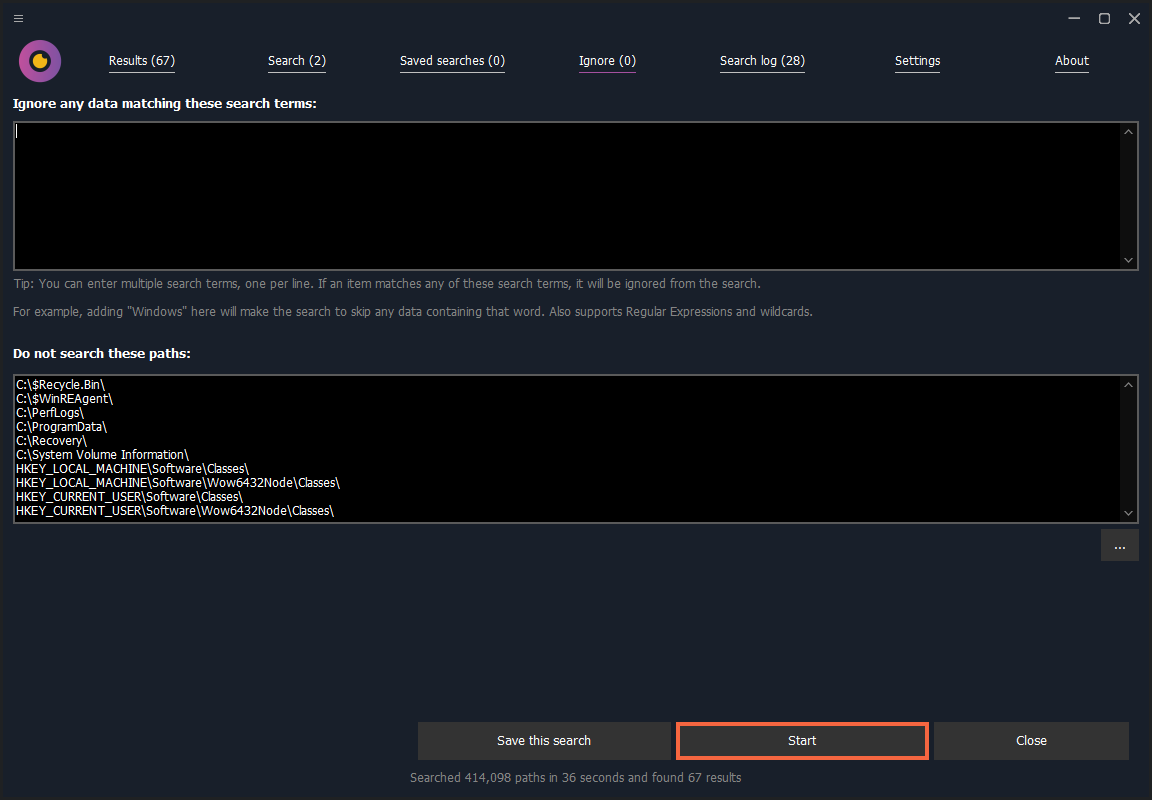
Ignore files and folders
WinFindr allows you to define ignore terms, for example, folders that you don’t want to search from.
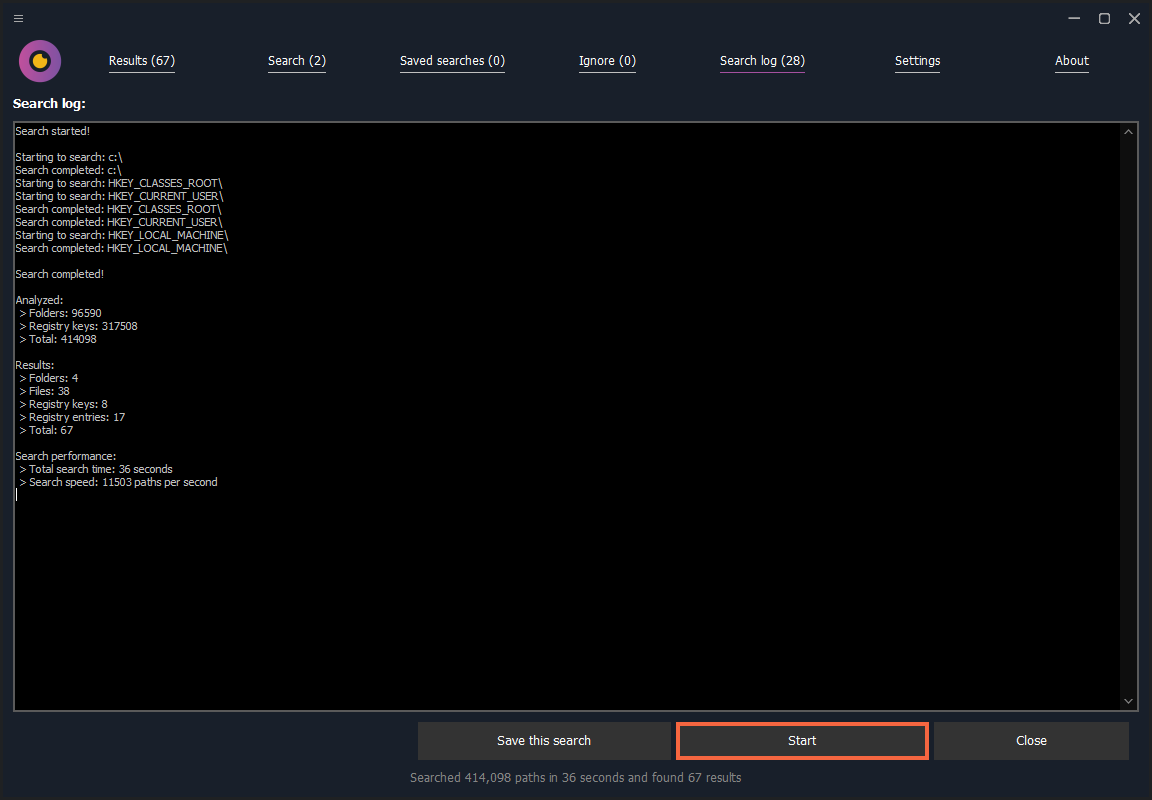
Advanced logging
WinFindr automatically generates a log for each search. This is a very useful feature if you want to exactly how the search was performed and what the results were.
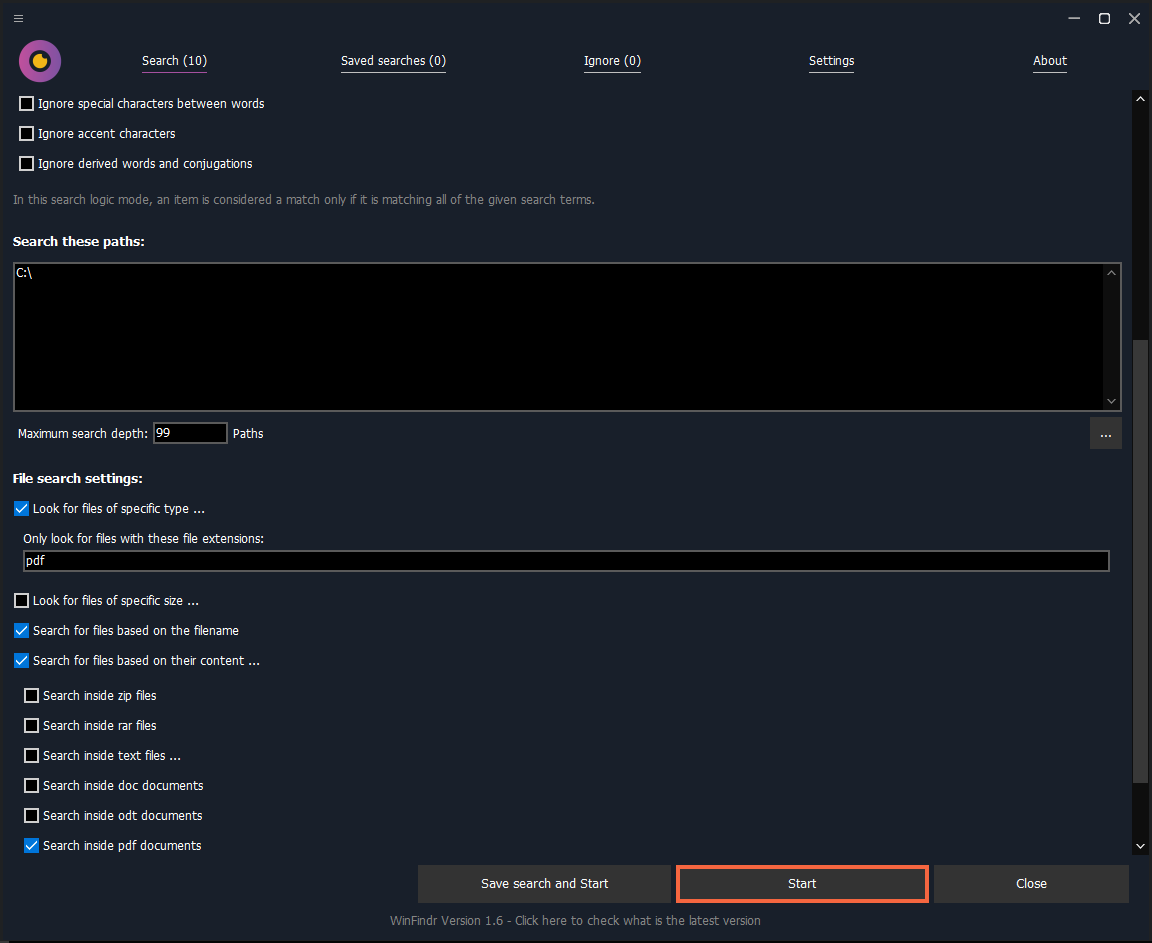
Search inside documents
WinFindr has a native, built-in support for searching inside PDF, epub, Microsoft Word, Excel, PowerPoint, and other document files including OpenOffice and LibreOffice files.
Follow the document content search tutorial to try these options.
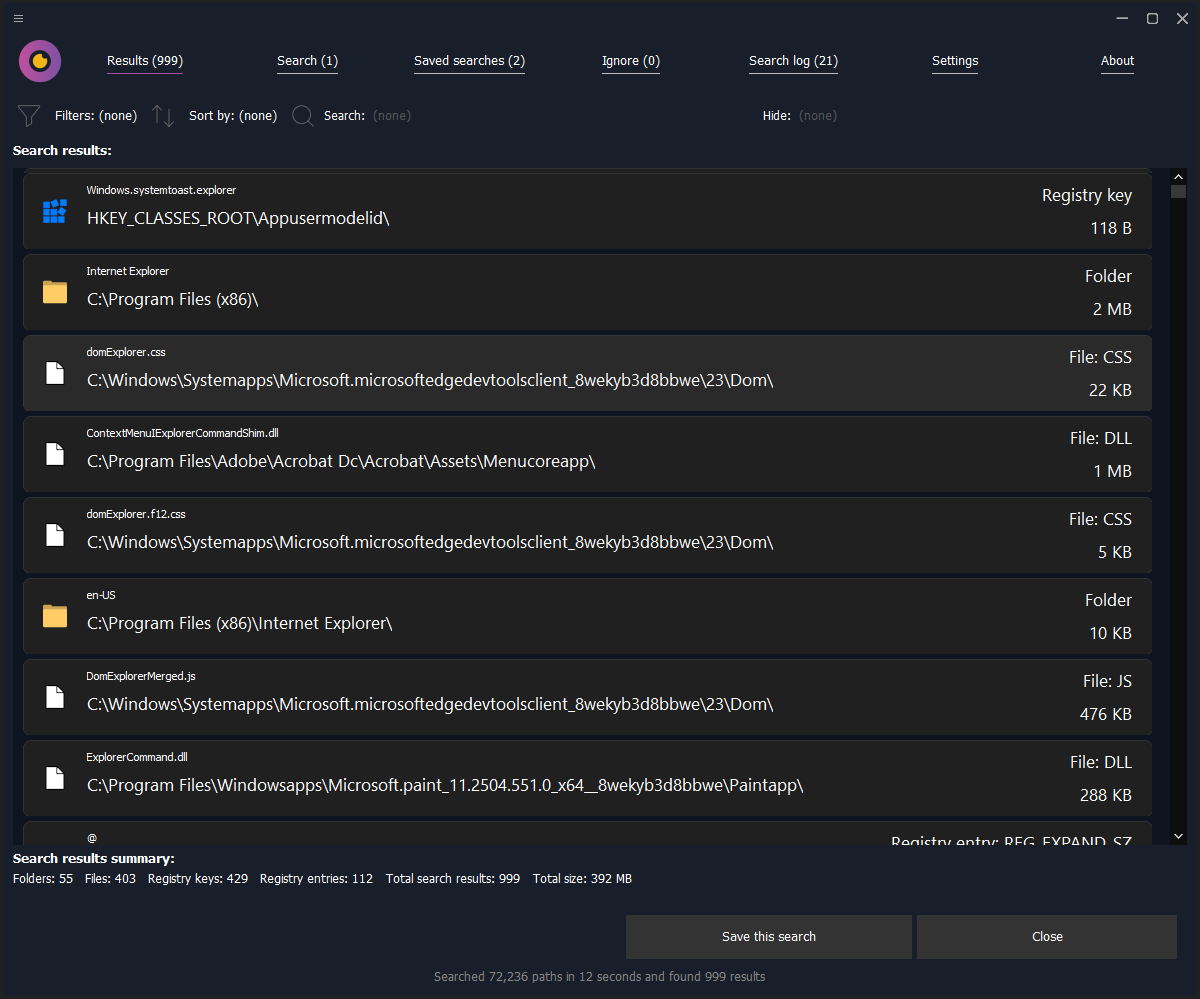
Search results
The search results are displayed in a list with all the relevant information. You can filter and sort the results to find exactly what you are looking for.
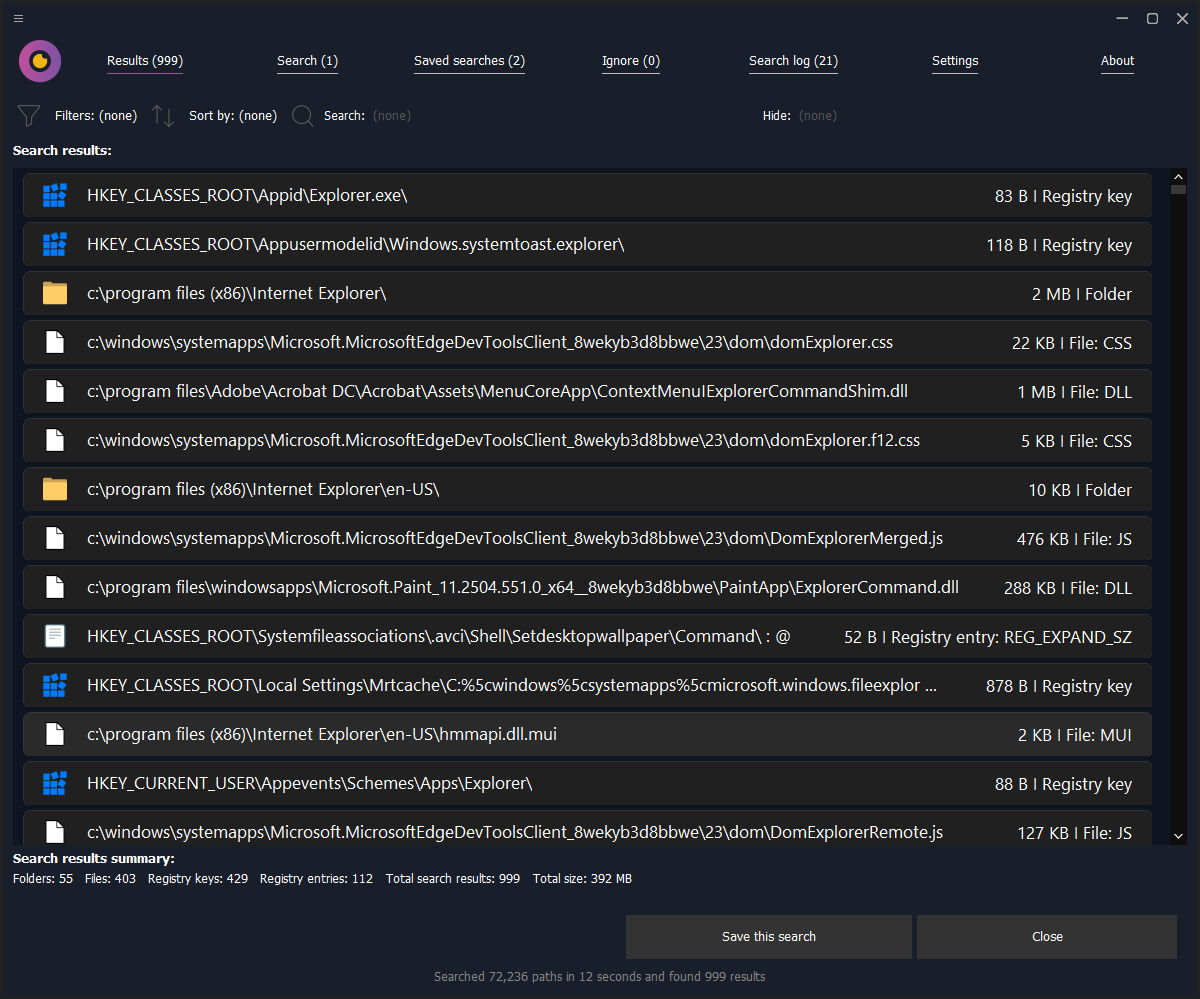
Compact search results
Everything is customizable. This is how the search results look like if you want to see the results in a more compact view.
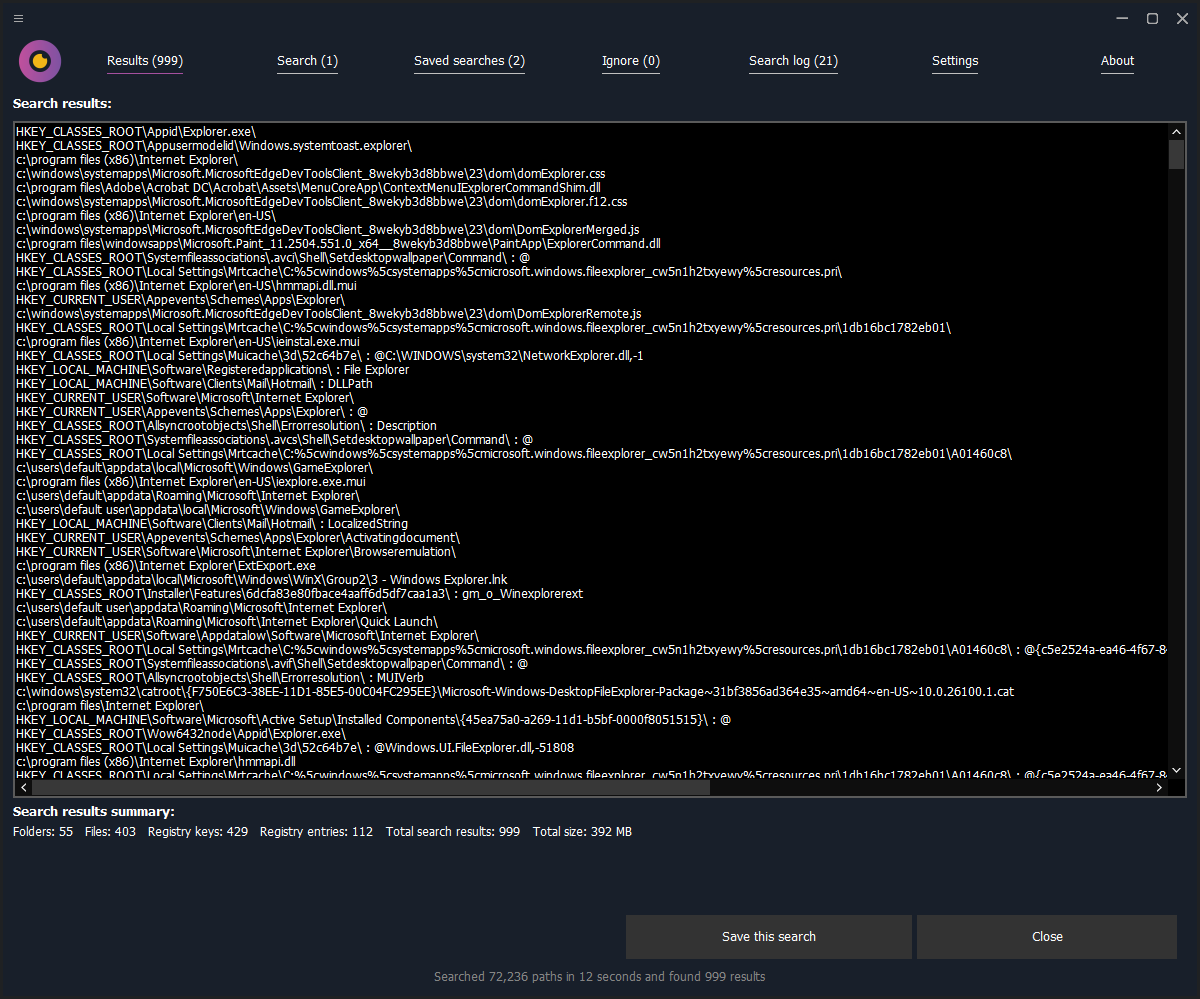
Text-only search results
Another option is to see the results as text-only. This is useful if you want to copy and paste the results into another application.
Download WinFindr
Knock, knock.
Who’s there?
Why.
Why who?
Why wait? Download WinFindr now!