


The developer of RegCleaner, jv16 PowerTools, Uninstalr, WinFindr, Startup Timer, ScreenshotX, System Examiner and Windows Update Fixer.
Microsoft has a built-in feature that allows you to search across all apps in Windows called Microsoft Search. By utilising this feature, you basically can search for anything you’re looking for across Windows, such as in Teams, Microsoft 365 Copilot (formerly Microsoft Office), and inside apps like Word, Excel, or Outlook, and more.
This guide will show you how to effortlessly access Microsoft Search using various Windows search shortcuts for a better Windows experience. These shortcuts can be used in both Windows 10 and Windows 11.
Table of Contents
The core Windows search shortcut
If there’s one Windows search shortcut that you should always remember, it’s this one: Windows Key + S (alternatively, you can use Windows key + Q or select the Start menu, then type something immediately).
This will automatically open the Windows search bar, enabling you to access Microsoft Search functionality – which means you can search for everything from your computer, locally, or online. This shortcut also works the same in both Windows 10 and Windows 11.
So, what can this keyboard shortcut do?
- Launch applications instantly
Forget cluttering your desktop and taskbar with desktop icons or hunting through the Start menu’s endless list. Just hit Windows Key + S, type the first few letters of the app (like “chro” for Chrome or “word” for Microsoft Word) in the search box. and press Enter. Et voila, the app launches.

- Unearth buried settings
Do you need to adjust the monitor’s brightness, the active hours of your Windows update, or connect to a Bluetooth device? Instead of getting lost in the labyrinth of the Control Panel or Settings apps, just search for what you want. Type “display settings”, “change active hours”, or “bluetooth” in the search box, and Windows will give you direct access to the exact menu you need. - Locate any file or folder
Whether it’s a document, a photo, a video, or a specific folder, just type the file name or even some text from inside the document (if you have activated Windows search index) in the search box and watch the results appear in real-time. - Get answers from the web
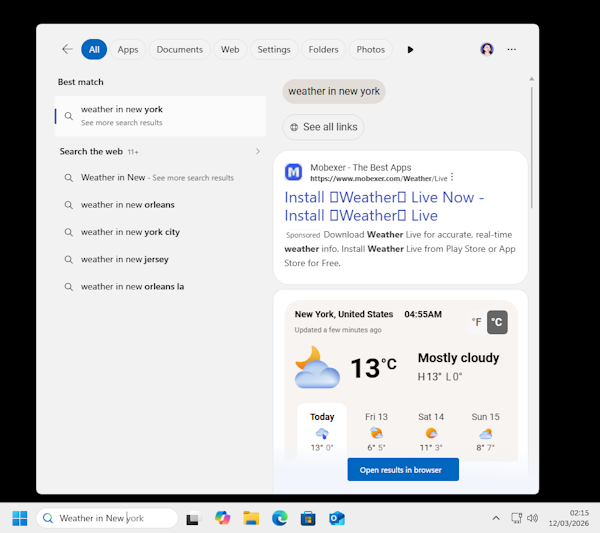
Windows Search isn’t just limited to your local machine; it’s also your quick portal to the internet. Type in “weather in New York”, or “how many ounces in a gallon” in the search box, and you’ll get an instant answer displayed in a new Microsoft Edge page.

Advanced Windows search shortcuts for power users
While Windows Key + S is a very versatile Windows search shortcut, sometimes you need a more precise instrument. That’s where advanced shortcuts come into play.
Search shortcuts for Windows Explorer/File Explorer
Hitting Windows key + E will automatically open File Explorer/Windows Explorer. This is way easier compared to the standard search method of hitting Windows key + S and typing in “windows explorer” or “file explorer” in the search box.
You can also easily highlight or jump into the search box in File Explorer using the Ctrl + F, Ctrl + E, or F3 keys. These search shortcuts will allow you to easily look up file name, file type, or other file attributes in the search box.
Want to quickly clear the items in the search box? Simply press the Esc key.
Search shortcuts for internet browsers
Popular browsers such as Google Chrome, Microsoft Edge, and Mozilla Firefox typically allow you to quickly search for text on an active page using the Ctrl + F shortcut.

To highlight the address bar in an active browser page, you can simply hit the Ctrl + L or F6 key.
If your search consists of multiple results, you can hit F3 to find the next search results. On the other hand, you can hit the Shift + F3 keys to find the previous search results.
Search shortcuts for text editing apps in Windows
If you want to do quick searches inside text editing apps such as Microsoft Word or Notepad, you can still take advantage of Windows search shortcuts.
You can use Ctrl + F to search for text in the text editing apps. If you need to quickly access the “Find and replace” menu, you can simply use the Ctrl + H shortcut.
If you’re using Notepad, you can easily go to a specific line using the Ctrl + G shortcut. This one is especially handy if you have long rows of data.

Just like searching in the browsing pages, if your search consists of multiple results, you can hit F3 to find the next search results. On the other hand, you can hit the Shift + F3 keys to find the previous search results.
Customizing your search experience
You can actually fine-tune how Microsoft Search works under the hood in the “Search” page in Privacy & Security.
To access this page, press the Windows key + S or click the Start menu and immediately type “search settings” in the search box (alternatively, you can press the Windows key + I, then type in “search settings”). This opens up a page where you can customize your Windows search experience.
There are some options you can customize, such as:
- Control your Windows search history
You can control whether you want to save the search history in your device for improved search results or disable it for privacy. All you need to do is toggle on and off the button next to the “Search history” menu under the Indexing status option. You can also delete the search history by clicking the “Clear” button under the “Search history” menu.

- Choose your Windows search index
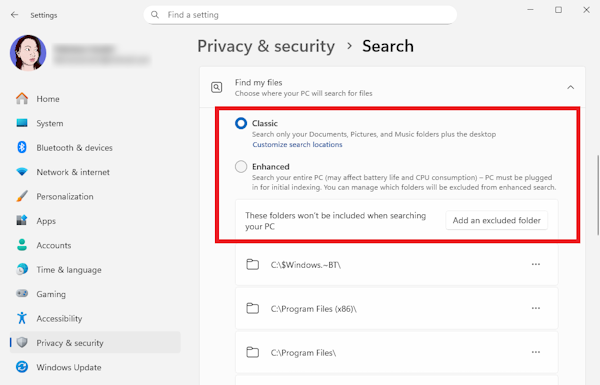
By default, Windows Search keeps an index of common locations like your Documents, Pictures, and Music folders plus the desktop. Most of the time, this should suffice, but if you want Windows to go deeper beyond that, you can go to “Find my files” > select “Enhanced” under the “Indexing menu” option. This essentially tells Windows to index your entire PC. Bear in mind that if you enable this, it may affect battery life and CPU consumption.
- Set up no-go zones
On the other hand, if you have folders that you don’t want to index, you can add an excluded folder. This could be a folder with sensitive information, a backup drive, or a massive game installation directory. You can do this by clicking “Add an excluded folder” under the Find my files menu.
Taking a few minutes to customize these search settings ensures that the windows search shortcut is perfectly tailored to your workflow.
Summary
Knowing the most commonly used Windows search shortcuts can improve your search experience by a whole lot. Here’s the summary of important keyboard shortcuts that will change your searching game in both Windows 10 and 11:
| Windows key + S or Windows key + Q | To open Windows search bar |
| Windows key + E | To open File Explorer |
| Ctrl + F, Ctrl + E, or F3 | To highlight or jump into the search box in File Explorer |
| Esc | To clear the items in the search box in File Explorer |
| Ctrl + F | To search for text in an active browser page or text editing apps (Word, Notedpad, etc) |
| Ctrl + L or F6 | To highlight browser address bar |
| F3 | To find the next search results in the browser page or text editing apps |
| Shift + F3 | To find the previous search results in the browser page or text editing apps |
| Ctrl + H | To quickly access the “Find and replace” menu in text editing apps |
| Ctrl + G | To go to a specific line in text editing apps |
We hope you find this little guide useful. If you find value in this article, please share it so our website can have better visibility.
If you’d like to have a summary of the most useful keyboard shortcuts on Windows, check out our sister website here: https://computerkeyboardshortcuts.org/