


The developer of RegCleaner, jv16 PowerTools, Uninstalr, WinFindr, Startup Timer, ScreenshotX, System Examiner and Windows Update Fixer.
Hidden files and folders aren’t always related to malware attacks. Sometimes they’re hidden for other reasons, such as privacy, protecting sensitive data, organizing and decluttering a computer, sharing a computer with other people, and so on.
In this article we’ll explain how to hide files and folders on Windows through different methods. If you need to find hidden files, we’ve written a step-by-step guide in this article.
Table of Contents
Important considerations before hiding files and folders
Hiding files and folders isn’t the only way to protect them. There are also other ways you can consider, such as:
- Password-protect files, where you enable a password to access the files.
- File encryption, where you make the files undecipherable without a unique security certificate.
- Steganography, where you conceal a file inside another file.
Keep in mind the options and choose one that best suits your situation.
Another thing to consider is always creating a backup of your important data before deciding to hide your files. There’s always a risk that things don’t go as planned, so it’s very important to ensure that you have a backup ready.
How to Hide Files and Folders on Windows
There are different ways to hide files and folders on Windows. Find the step-by-step instructions below.
Hide files and folders using File Properties
Windows 11
Here’s how to hide files and folders using File Properties on Windows 11:
- Open File Explorer and right-click the file or folder you want to hide > select “Properties”. This will open a new window.
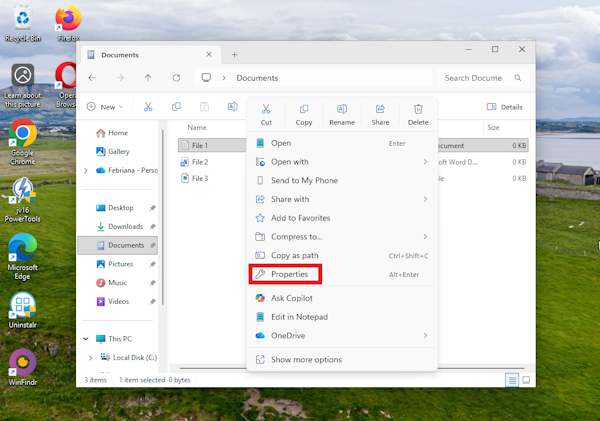
- In the new window, select the “General” tab.
- On the “Attributes” option, tick “Hidden” > click the “Apply” button.
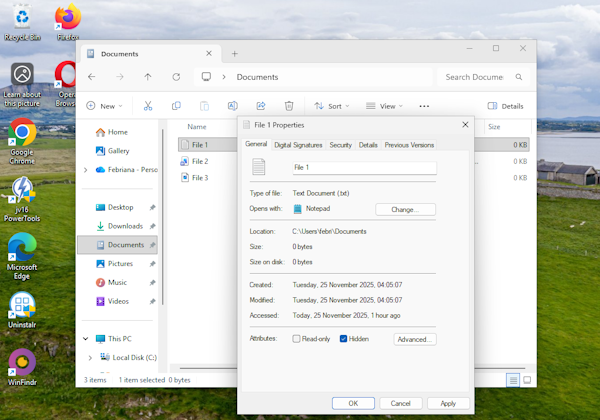
- If you want to hide multiple files or folders, all you need to do is right-click all of those files and repeat the steps above to apply hidden attributes to all of them.
Windows 10
- Open File Explorer and right click the file or folder you want to hide > select “Properties”. This will open a new window.
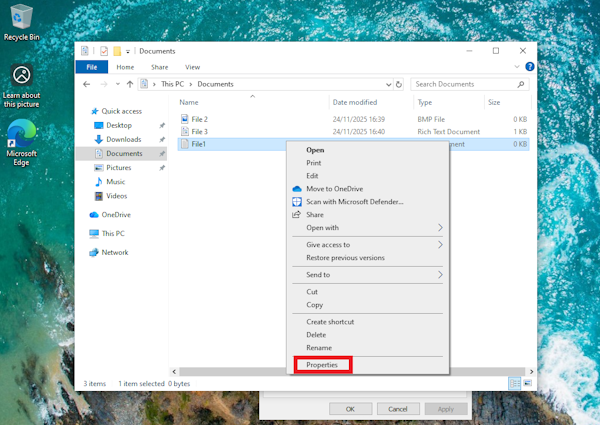
- In the new window, select the “General” tab.
- On the “Attributes” option, tick “Hidden” > click the “Apply” button.

- If you want to hide multiple files or folders, all you need to do is right-click all of those files and repeat the steps above to apply hidden attributes to all of them.
Hide files and folders using Command Prompt (CMD)
Here’s how to hide a file or folder using Command Prompt. The steps are the same for both Windows 11 and Windows 10.
- Look up “Command Prompt” on the Windows search bar > right-click from the search results > select “Run as administrator”.
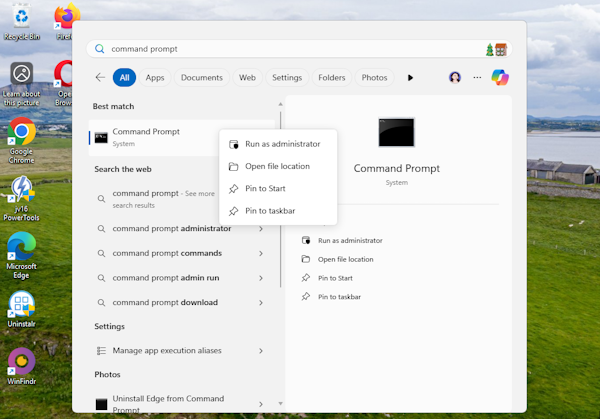
- Select “Yes” in the new pop-up that will appear.
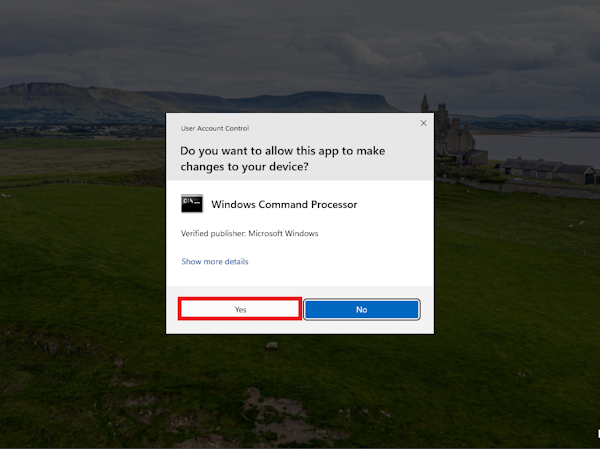
- Type in the following command; replace “FILEPATH” with the path of the file you want to hide.
cd FILEPATH
- Next, type in the following command; replace “FILENAME” with the file name (and file extension) you want to hide.
attrib +h "FILENAME"- If you want to hide a folder, you can type in the following command; replace “FOLDERNAME” with the folder’s name.
attrib +h "FOLDERNAME"- If you want to hide a folder and its subfolders and files, you can type in the following command; replace “FOLDERNAME” with the folder name you want to hide.
attrib +h "FOLDERNAME" /s /dHide files and folders using PowerShell
Here’s how to hide folders and files using PowerShell. The steps are the same for both Windows 11 and Windows 10.
- Look up “PowerShell” on the Windows search bar > right-click from the search results > select “Run as administrator”.
- To hide a file, type in the following command; replace “FILEPATH” with the path of the file you want to hide.
(Get-Item FILEPATH).Attributes += 'Hidden'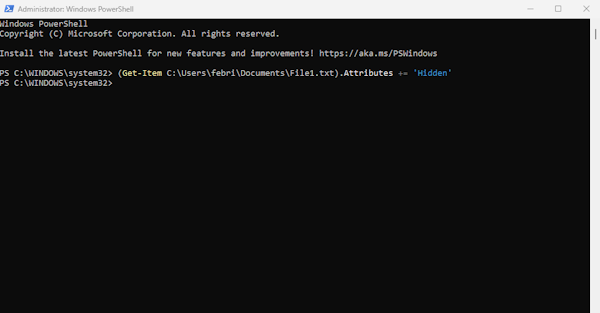
- To hide a folder, type in the following command; replace “FOLDERPATH” with the path of the folder you want to hide.
(Get-Item FOLDERPATH).Attributes += 'Hidden'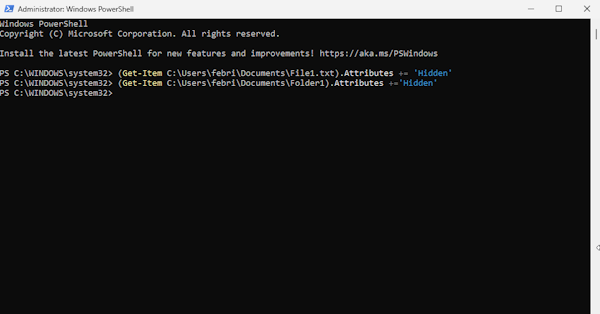
Protecting your files and folders instead of hiding them
Hiding files and folders using Windows’ built-in features is straightforward since you’re basically telling the computer to add hidden attributes to files and folders you want to hide.
Depending on how much you want to keep your sensitive data from other people, this might or might not be sufficient.
If you’re looking into adding extra security layers for truly sensitive data, you may want to look into password-protecting your files. We’ve written a complete guide on password-protecting your files and folders here.
However, if the files and folders don’t contain truly sensitive data, hiding them on your computer should be sufficient.
How to find hidden files later
Finding hidden items in files and folders in the future is very straightforward. All you need to do is change the settings in File Explorer/File Manager so that it’ll show hidden files and folders.
Otherwise, you can use a third-party search tool that has the capabilities to search for files and folders with hidden attributes, such as WinFindr.
We also wrote a step-by-step guide to find hidden files in this article.
Conclusion
To hide files and folders basically means to add hidden attributes to your files and folders. There are multiple ways to do this using Windows built-in features, such as through File Properties, Command Prompt, and PowerShell. The steps to do it are also straightforward, regardless of which feature you choose.
Bear in mind that if you have sensitive data, simply hiding it might not be sufficient. You may want to consider other measures to protect your data, such as password protection, encryption, or stenography.
If you need to find hidden files and folders later, you can simply remove the hidden attributes from them. Or you can use a third-party tool with the capabilities to search for files and folders with hidden attributes, such as WinFindr.
You can download WinFindr for free from its website: https://winfindr.com/ and it’s available in both Portable and Setup versions.