


The developer of RegCleaner, jv16 PowerTools, Uninstalr, WinFindr, Startup Timer, ScreenshotX, System Examiner and Windows Update Fixer.
Hidden files are files that aren’t easily searchable with the typical search method on Windows. There are different scenarios why hidden files exist in your system, such as:
- The Windows operating system purposely hides your system files because they’d otherwise appear as clutter or because they’re important system files that shouldn’t be modified or deleted.
- You or someone who accesses your computer hides (or accidentally hides) some specific files.
- Malware or viruses infiltrate your computer and they’d hide themselves, therefore, creating hidden files.
In this article, we’ll show you how to find hidden files on Windows using various methods.
Table of Contents
How to Find Hidden Files
There are different ways to find hidden files on Windows. The easiest and most common way would be to use Windows File Explorer. However, if it’s not sufficient, you might want to try a third-party tool as an alternative.
Let’s delve into each method and the step-by-step guide below.
Using File Explorer
Here’s how to find hidden files using Windows File Explorer on Windows 10 and Windows 11.
On Windows 11
- Open File Explorer by clicking the Windows key + E.
- In the File Explorer window, select the dropdown next to the “View” menu > select “Show” > select and tick the “Hidden items” option.

On Windows 10
- Open File Explorer by clicking the Windows key + E.
- Click the View tab > in the Show/hide group, tick the “Hidden items” option.

Using Advanced settings
This method is suitable when you want to find protected operating system files that are hidden by Windows.
However, bear in mind that those files are protected for a reason. Modifying or deleting them by accident could cause irreversible damage to your system, so please only proceed if you know what you’re doing.
Here’s how to find hidden files using Advanced settings in Windows File Explorer on Windows 10 and Windows 11.
On Windows 11
- Open File Explorer by clicking the Windows key + E.
- In the File Explorer window, click the three dots next to the “View” menu > select “Options”.

- In the Folder Options window, select the View tab.
- Under the Advanced settings menu, untick this option: “Hide protected operating system files (Recommended)”.
- A new warning pop-up will appear; select “Yes” to proceed.

On Windows 10
- Open File Explorer by clicking the Windows key + E.
- Click the View tab > select “Options” > select “Change folder and search options”.
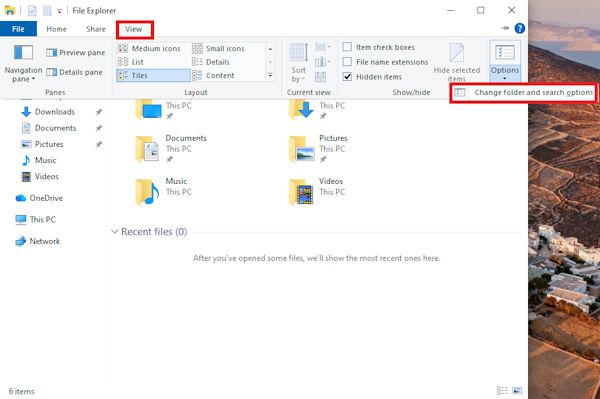
- In the Folder Options window, select the View tab.
- Under the Advanced settings menu, untick this option: “Hide protected operating system files (Recommended)”
- A new warning pop-up will appear; select “Yes” to proceed.

Using a third-party search tool
If the above steps still don’t help you find hidden files, you might want to try a third-party search tool, such as WinFindr, as an alternative. Here’s how:
- Run WinFindr.
- Type in the search terms in the search box; this could be the name or file extension of the hidden files.

- Click the “Start” button to perform the search.
By default, WinFindr lists all of the files that match the search criteria, even if they’re hidden files.
If you want to specifically look for hidden files only, you can narrow down the file search settings. Here’s how you can do it:
- Run WinFindr.
- Type in the search terms in the search box; this could be the name or file extension of the hidden files.
- Under the “File search settings” menu, tick/check the “Look for files based on their attributes …” option.
- New options will appear. Tick/check the “(H+) Only list files that have the Hidden attribute” option.

- Click the “Start” button to perform the search.
Conclusion
Windows File Explorer provides options to show hidden files, though they might not be the most straightforward way. Some hidden files are easier to find, while some others, such as protected operating system files, require additional steps to find – for a good reason.
If Windows File Explorer doesn’t solve your issue, you might want to consider a third-party tool, such as WinFindr. WinFindr is a lightweight and easy-to-use Windows search tool that enables you to search for any kind of files, including hidden files.
WinFindr is available in a Portable or Setup version. You can download it for free from its website: https://winfindr.com/